IPTV PLAYER
All Devices

Supported Devices

Seamless IPTV on every modern device.

Smart TV (Samsung, LG)

Android TV Box

Apple TV

iPhone & iPad

Android Phone

Windows / Mac

Fire Stick

MAG / Formuler

IPTV on All Your Devices — Detailed Setup Guide

With your IPTV Player subscription, you can start streaming on all the devices below within minutes. Specific setup instructions and recommended apps are listed for each device.

Smart TV (Samsung, LG, Sony)

Download IPTV Smarters or Smart IPTV from Samsung Smart Hub, LG Content Store or Sony Select. Open the app and enter the M3U URL or Xtream Codes from your IPTV provider to start instantly. Enjoy 4K Ultra HD on the big screen without interruptions.

Android TV Box & NVIDIA Shield

Download TiviMate or IPTV Smarters from Google Play Store. TiviMate is considered the best IPTV player for Android TV. It offers premium EPG support, recording features and multi-playlist management. With NVIDIA Shield, AI upscaling lets you watch HD content in 4K quality.

Amazon Fire TV Stick

Install the Downloader app from Amazon App Store. After enabling Apps from Unknown Sources, download and install TiviMate or IPTV Smarters APK. With Fire TV Stick 4K Max and Wi-Fi 6 support, enjoy 4K streams wirelessly without buffering.

Apple TV (tvOS)

Download IPTV Smarters or IPTVX from the App Store. Experience premium IPTV with Dolby Vision and Dolby Atmos on Apple TV 4K. iCloud sync keeps your favorite channels updated across all your Apple devices.

iPhone & iPad (iOS)

Download GSE Smart IPTV, IPTV Smarters or IPTVX from the App Store. Use AirPlay to wirelessly stream to your Apple TV. Picture-in-Picture support lets you continue watching IPTV while using other apps.

Android Phone & Tablet

Download IPTV Smarters, IPTV Smart Player, IPTV Extreme or TiviMate from Google Play Store. Cast to your TV with Chromecast support. Enjoy IPTV anywhere with mobile data or Wi-Fi.

Windows & Mac Computer

Use VLC Media Player, IPTV Smarters (Windows) or MyIPTV Player for Windows. For Mac, VLC, IPTV Smarters or IINA are recommended. Simply drag and drop the M3U file or paste the URL to start streaming instantly. Multi-channel viewing on the big screen.

MAG / Formuler Boxes

Activate by entering your Portal URL or providing your MAC address to your provider on MAG 524, MAG 540, MAG 544 and Formuler Z series devices. Experience the most stable streaming with Ethernet connection. MAG boxes offer a TV-like experience with dedicated IPTV interface and remote control.

Choose the Right Setup for Your Home

A reliable IPTV setup is a combination of a compatible screen, a suitable player app and a steady home network. A little preparation makes everyday viewing simpler, whether you watch live television in the living room or catch up on a phone while travelling.

Modern television set up as a home entertainment screen

Make the television your main screen

For a shared living room, start with the television you already own. Check its app store for a player that supports your provider's connection format, then follow that app's instructions to enter your playlist URL or Xtream Codes login. App availability differs by television model and region, so verify compatibility before choosing a new subscription or buying extra hardware. If the television's processor feels slow, a current streaming stick or Android TV box can provide a more responsive interface without replacing the screen. Keep the player and television software updated, and use the television's wired Ethernet port when the router is nearby. A direct connection can reduce interference during busy evening hours. Place the device where it has room to ventilate, and keep the remote-control experience simple by removing apps the household never uses. For families, separate profiles or a short favorites list can make it easier for everyone to find familiar channels without scrolling through a long catalogue.
Person using a mobile device for streaming and everyday media

Use a phone or tablet for flexible viewing

Phones and tablets are useful for short viewing sessions, travel and rooms where a television is not available. Install a player from the official App Store or Google Play Store, and enter account details only in the app you selected. A stable Wi-Fi connection is usually preferable at home; when using mobile data, check your plan because live video can consume data quickly. Reduce playback quality when coverage is weak, and close downloads or cloud backups that are competing for bandwidth. If you want to move a programme to a larger screen, use the casting or AirPlay option supported by both the player and receiving device. Keep in mind that casting compatibility depends on the app, phone and television, and not every channel player offers the same controls. Enable a screen lock and avoid saving credentials on a shared device. Before a trip, test the app while connected to Wi-Fi and confirm that you can reach your account, rather than troubleshooting on an unreliable public network. Headphones and a phone stand can also make a small-screen setup more comfortable for longer sessions.

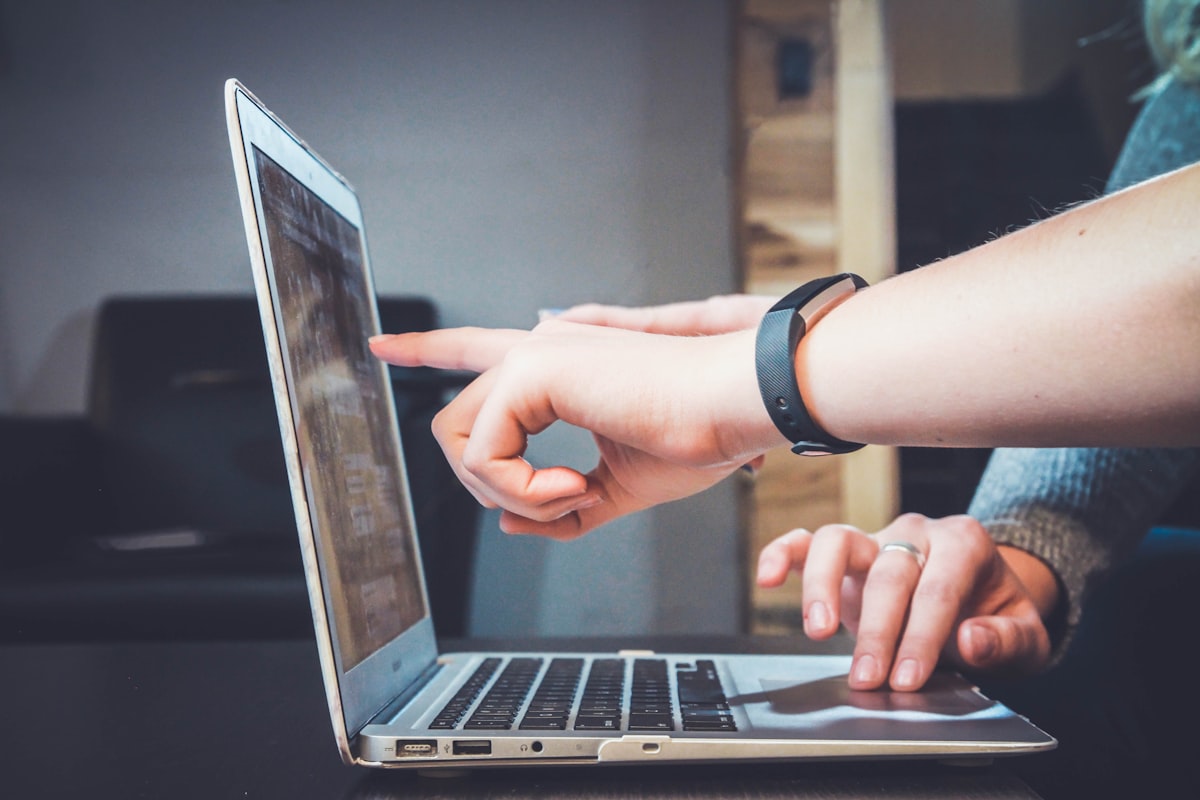
Laptop computer ready for streaming over a home network

Get a steady picture across every screen

Picture quality depends on more than the display's advertised resolution. The player has to decode the stream, the network has to deliver it consistently, and the source itself must be available at the quality you expect. Place the router in an open central location, avoid enclosing it in a cabinet and connect fixed television equipment by Ethernet when practical. For Wi-Fi, use a strong signal and a modern router; a mesh access point may help if the viewing room is far from the router. If playback pauses, restart the player first, then check whether other devices are saturating the connection. Testing at different times can distinguish a local Wi-Fi issue from a wider service interruption. On computers, a supported browser or desktop player is convenient for a desk, while full-screen mode makes use of a larger monitor. Keep operating systems and player apps current, and use only legitimate apps and credentials supplied by your service. Finally, check the number of permitted simultaneous streams in your plan before watching on several screens. These simple checks make troubleshooting more predictable and help you select hardware based on actual needs instead of marketing claims.

Why IPTV Player Device Support?

Works seamlessly on all popular platforms
Dedicated setup guides for each device
4K Ultra HD streaming support
Simultaneous viewing on multiple devices
24/7 English technical support
Activation in 5 minutes and instant streaming
No buffering with Anti-Freeze™ technology
Regular app updates and compatibility

Frequently Asked Questions About Devices

Do I need to buy a special device for IPTV?▾
No, your existing Smart TV, phone, tablet or computer is sufficient for IPTV. However, for the best experience, dedicated streaming devices like Android TV Box, Fire TV Stick or Apple TV 4K are recommended.
How many devices can I watch IPTV on simultaneously?▾
Depending on your subscription package, you can watch IPTV on 1 to 4 devices simultaneously. Our Premium Server package includes 4-device support.
Which device gives the best IPTV experience?▾
NVIDIA Shield TV Pro or Apple TV 4K are recommended for the best experience. These devices offer 4K AI upscaling, Dolby Vision and Dolby Atmos support. Ethernet connection provides the most stable streaming.
How do I install an IPTV app on my Smart TV?▾
On Samsung TVs, use Smart Hub; on LG TVs, use LG Content Store; on Sony TVs, use Google Play Store. Search for IPTV Smarters, Smart IPTV or TiviMate, download and install. After installation, enter your IPTV credentials and start streaming instantly.

Start Premium IPTV on All Your Devices

Get a free test account now and experience 40,000+ channels and 120,000+ VOD content on all your devices.

Get Free Test